Kitab
HomeBlogAboutDashboard
Kitab

A multilingual blog starter showcasing RTL support and Arabic typography.

Navigation

  • Home
  • Blog
  • About

Resources

  • GitHub
  • Documentation
  • Components

Connect

2025 Kitab. All rights reserved.

Made with noorui-rtl and Next.js

Kitab
HomeBlogAboutDashboard
Kitab

A multilingual blog starter showcasing RTL support and Arabic typography.

Navigation

  • Home
  • Blog
  • About

Resources

  • GitHub
  • Documentation
  • Components

Connect

2025 Kitab. All rights reserved.

Made with noorui-rtl and Next.js

  1. Home
  2. Blog
  3. Responsive Design in Both Directions
RTL/LTR Concepts

Responsive Design in Both Directions

Learn how to build responsive layouts that work flawlessly in both RTL and LTR contexts, using CSS logical properties and modern layout techniques.

9 min read1
Responsive Design in Both Directions
KA

Karim Benali

Senior frontend developer with 10+ years building RTL-first applications.

The Good News First

Here's something that will make your day: breakpoints work identically in RTL and LTR. A 768px screen is still 768px wide whether you're reading Arabic or English. Your media queries don't need to change.

The challenge isn't about screen size—it's about how content flows within those breakpoints. But the even better news? Modern CSS has evolved to handle directional layouts with minimal extra work.

"

"Responsive design in both directions isn't about writing two sets of styles—it's about writing direction-agnostic styles from the start."

"

Let me show you how to build layouts that gracefully adapt to any screen size and any text direction.

The Foundation: CSS Logical Properties

The secret to bidirectional responsive design is using CSS logical properties instead of physical properties.

Physical vs Logical Properties

/* ❌ Physical properties - direction-specific */
.sidebar {
  margin-left: 20px;
  padding-right: 10px;
  border-right: 1px solid gray;
  left: 0;
}
 
/* ✅ Logical properties - direction-agnostic */
.sidebar {
  margin-inline-start: 20px;
  padding-inline-end: 10px;
  border-inline-end: 1px solid gray;
  inset-inline-start: 0;
}

The logical version automatically adapts:

  • In LTR: inline-start = left, inline-end = right
  • In RTL: inline-start = right, inline-end = left

Think of "inline" as the reading direction (horizontal in most languages) and "block" as the perpendicular direction (vertical for stacked content).

The Complete Logical Property Map

Physical PropertyLogical EquivalentMeaning
margin-leftmargin-inline-startMargin at reading start
margin-rightmargin-inline-endMargin at reading end
margin-topmargin-block-startMargin at block start
margin-bottommargin-block-endMargin at block end
padding-leftpadding-inline-startPadding at reading start
padding-rightpadding-inline-endPadding at reading end
border-leftborder-inline-startBorder at reading start
border-rightborder-inline-endBorder at reading end
leftinset-inline-startPosition from reading start
rightinset-inline-endPosition from reading end
text-align: lefttext-align: startAlign to reading start
text-align: righttext-align: endAlign to reading end

Responsive Sidebar Layouts

Sidebars are the most common layout challenge in bidirectional designs. Let's build one that works everywhere.

Desktop: Side-by-Side Layout

/* Container with sidebar and main content */
.layout {
  display: flex;
  gap: 2rem;
  max-width: 1200px;
  margin: 0 auto;
  padding: 1rem;
}
 
/* Sidebar - automatically flips position */
.sidebar {
  width: 250px;
  flex-shrink: 0;
  padding-inline-end: 2rem;
  border-inline-end: 1px solid #e5e7eb;
}
 
/* Main content fills remaining space */
.main {
  flex: 1;
  min-width: 0; /* Prevent overflow */
}

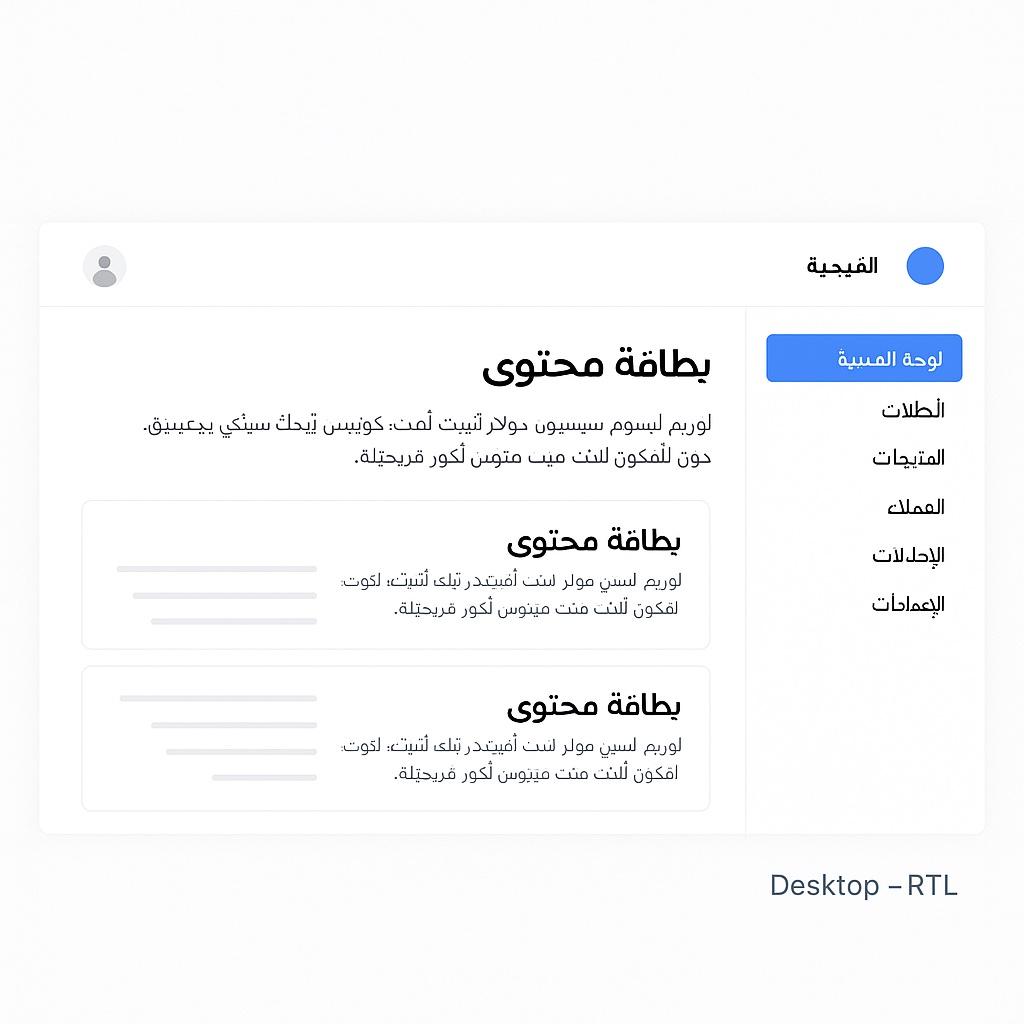
In LTR, the sidebar is on the left. In RTL, it's automatically on the right. No extra code needed.

Mobile: Stacked Layout

/* Mobile-first: stack vertically */
.layout {
  display: flex;
  flex-direction: column;
  padding: 1rem;
}
 
.sidebar {
  width: 100%;
  padding-inline-end: 0;
  padding-block-end: 2rem;
  border-inline-end: none;
  border-block-end: 1px solid #e5e7eb;
}
 
/* Desktop: side-by-side */
@media (min-width: 768px) {
  .layout {
    flex-direction: row;
  }
 
  .sidebar {
    width: 250px;
    padding-inline-end: 2rem;
    padding-block-end: 0;
    border-inline-end: 1px solid #e5e7eb;
    border-block-end: none;
  }
}

Flexbox automatically handles RTL/LTR direction when you use flex-direction: row. The items flow in the reading direction without any additional properties.

Collapsible Sidebar Pattern

For dashboards with toggleable sidebars:

.sidebar {
  position: fixed;
  inset-block-start: 0;
  inset-inline-start: 0;
  width: 250px;
  height: 100vh;
  background: white;
  transform: translateX(-100%);
  transition: transform 0.3s ease;
}
 
/* In RTL, negative transform goes opposite direction */
[dir="rtl"] .sidebar {
  transform: translateX(100%);
}
 
/* Open state */
.sidebar.is-open {
  transform: translateX(0);
}
 
/* Content shifts when sidebar opens */
.main {
  margin-inline-start: 0;
  transition: margin-inline-start 0.3s ease;
}
 
.main.sidebar-open {
  margin-inline-start: 250px;
}
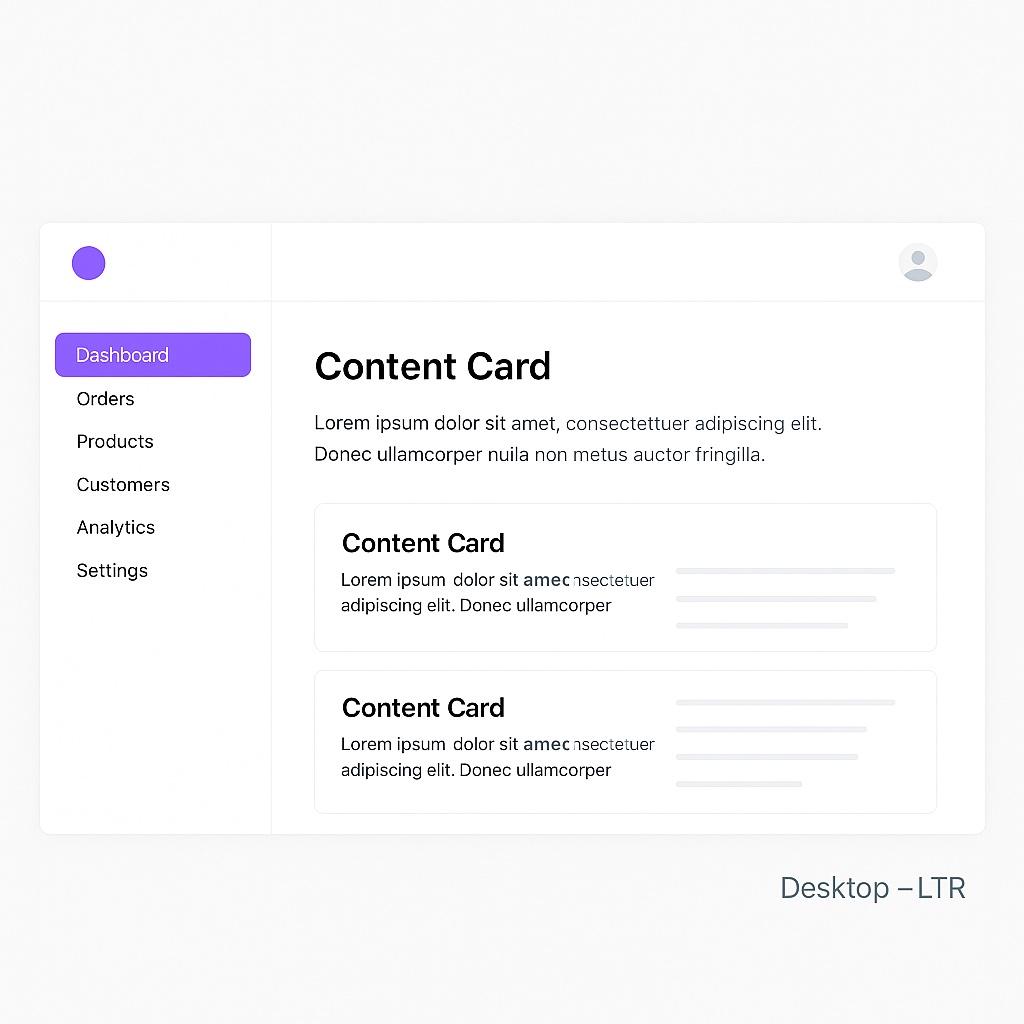
Sidebar layout in LTR on desktop
LTR desktop: sidebar on left
Sidebar layout in RTL on desktop
RTL desktop: sidebar on right

Mobile Navigation Patterns

Mobile navigation needs special attention in bidirectional designs.

Hamburger Menu Position

The hamburger menu typically goes at the reading-start edge:

/* Header with hamburger menu */
.header {
  display: flex;
  align-items: center;
  justify-content: space-between;
  padding: 1rem;
  background: white;
  border-block-end: 1px solid #e5e7eb;
}
 
/* Menu button at reading start */
.menu-button {
  /* Flexbox places it at the start automatically */
  order: -1; /* Ensure it comes first */
}
 
.logo {
  /* Center logo */
  margin-inline: auto;
}
 
.actions {
  /* Actions at the end */
  display: flex;
  gap: 0.5rem;
}

Drawer Slide Direction

Mobile drawers should slide from the reading-start edge:

/* Drawer starts off-screen at reading start */
.mobile-drawer {
  position: fixed;
  inset-block: 0;
  inset-inline-start: 0;
  width: 80%;
  max-width: 300px;
  background: white;
  transform: translateX(-100%);
  transition: transform 0.3s ease;
  z-index: 1000;
}
 
[dir="rtl"] .mobile-drawer {
  transform: translateX(100%);
}
 
/* Open state */
.mobile-drawer.is-open {
  transform: translateX(0);
}
 
/* Overlay */
.drawer-overlay {
  position: fixed;
  inset: 0;
  background: rgba(0, 0, 0, 0.5);
  opacity: 0;
  pointer-events: none;
  transition: opacity 0.3s ease;
}
 
.drawer-overlay.is-visible {
  opacity: 1;
  pointer-events: auto;
}

Avoid using absolute positioning with left or right values for drawers. Use inset-inline-start with logical transforms instead. This ensures smooth RTL transitions.

CSS Grid for Bidirectional Layouts

CSS Grid is incredibly powerful for responsive, direction-agnostic layouts.

Basic Grid Layout

/* Grid adapts to reading direction automatically */
.grid {
  display: grid;
  grid-template-columns: repeat(auto-fit, minmax(250px, 1fr));
  gap: 2rem;
  padding: 1rem;
}
 
/* Items flow in reading direction by default */
.grid-item {
  background: white;
  padding: 1.5rem;
  border-radius: 8px;
  box-shadow: 0 1px 3px rgba(0, 0, 0, 0.1);
}

This grid automatically flows RTL in Arabic and LTR in English. No additional code required.

Dashboard Grid with Named Areas

/* Mobile: single column */
.dashboard {
  display: grid;
  grid-template-areas:
    "header"
    "stats"
    "chart"
    "activity"
    "sidebar";
  gap: 1rem;
  padding: 1rem;
}
 
/* Tablet: two columns */
@media (min-width: 768px) {
  .dashboard {
    grid-template-columns: 1fr 1fr;
    grid-template-areas:
      "header header"
      "stats stats"
      "chart chart"
      "activity sidebar";
  }
}
 
/* Desktop: three columns with sidebar */
@media (min-width: 1024px) {
  .dashboard {
    grid-template-columns: 250px 1fr 1fr;
    grid-template-areas:
      "sidebar header header"
      "sidebar stats stats"
      "sidebar chart activity";
  }
}
 
/* Component placement */
.header { grid-area: header; }
.stats { grid-area: stats; }
.chart { grid-area: chart; }
.activity { grid-area: activity; }
.sidebar { grid-area: sidebar; }

Named grid areas automatically flip in RTL. The sidebar moves from left to right without any direction-specific code.

/* Asymmetric grid for blogs */
.blog-layout {
  display: grid;
  gap: 2rem;
  padding: 2rem;
}
 
/* Mobile: single column */
@media (max-width: 767px) {
  .blog-layout {
    grid-template-columns: 1fr;
  }
}
 
/* Tablet: 2:1 ratio */
@media (min-width: 768px) {
  .blog-layout {
    grid-template-columns: 2fr 1fr;
  }
}
 
/* Desktop: more complex */
@media (min-width: 1024px) {
  .blog-layout {
    grid-template-columns: 200px 2fr 1fr;
  }
}

Responsive Card Layouts

Cards are common UI elements that need careful attention in bidirectional designs.

Horizontal Cards

/* Card with image and content side by side */
.card {
  display: flex;
  gap: 1rem;
  background: white;
  border-radius: 8px;
  overflow: hidden;
  box-shadow: 0 2px 4px rgba(0, 0, 0, 0.1);
}
 
.card-image {
  width: 150px;
  flex-shrink: 0;
  object-fit: cover;
}
 
.card-content {
  flex: 1;
  padding: 1rem;
  display: flex;
  flex-direction: column;
}
 
.card-title {
  font-size: 1.25rem;
  font-weight: 600;
  margin-block-end: 0.5rem;
}
 
.card-actions {
  margin-block-start: auto;
  display: flex;
  gap: 0.5rem;
  justify-content: flex-end; /* Always at the end */
}
 
/* Mobile: stack vertically */
@media (max-width: 640px) {
  .card {
    flex-direction: column;
  }
 
  .card-image {
    width: 100%;
    height: 200px;
  }
}

The image automatically appears at the reading-start (left in LTR, right in RTL) without any direction-specific code.

Grid of Cards

.card-grid {
  display: grid;
  grid-template-columns: repeat(auto-fill, minmax(280px, 1fr));
  gap: 1.5rem;
  padding: 1rem;
}
 
/* Each card */
.card {
  background: white;
  border-radius: 8px;
  overflow: hidden;
  box-shadow: 0 1px 3px rgba(0, 0, 0, 0.1);
}
 
.card-media {
  width: 100%;
  aspect-ratio: 16 / 9;
  object-fit: cover;
}
 
.card-body {
  padding: 1.25rem;
}
 
.card-meta {
  display: flex;
  justify-content: space-between;
  align-items: center;
  font-size: 0.875rem;
  color: #6b7280;
  margin-block-start: 1rem;
}
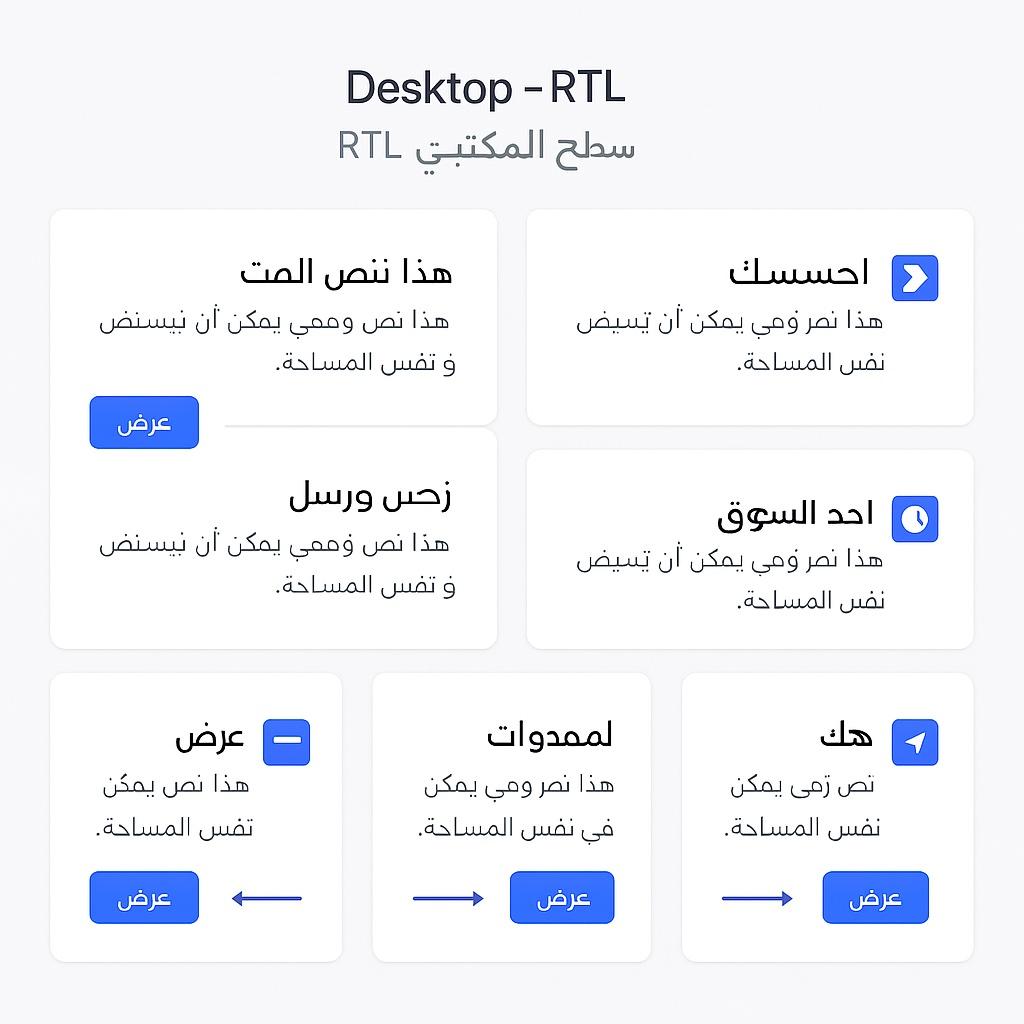
Card layout in LTR on mobile
Mobile cards stack vertically
Card grid in RTL on desktop
Desktop grid flows in reading direction

Common Responsive Patterns

Navigation Bar

/* Responsive nav that works in both directions */
.nav {
  display: flex;
  align-items: center;
  justify-content: space-between;
  padding: 1rem 2rem;
  background: white;
  box-shadow: 0 1px 3px rgba(0, 0, 0, 0.1);
}
 
.nav-links {
  display: none; /* Hidden on mobile */
  gap: 2rem;
}
 
/* Show on tablet and up */
@media (min-width: 768px) {
  .nav-links {
    display: flex;
  }
}
 
.nav-link {
  color: #374151;
  text-decoration: none;
  font-weight: 500;
}
 
/* Mobile menu button */
.nav-toggle {
  display: block;
}
 
@media (min-width: 768px) {
  .nav-toggle {
    display: none;
  }
}

Form Layouts

/* Responsive form */
.form {
  display: grid;
  gap: 1.5rem;
  max-width: 600px;
  margin: 0 auto;
  padding: 2rem;
}
 
/* Two-column on desktop */
@media (min-width: 768px) {
  .form-row {
    display: grid;
    grid-template-columns: 1fr 1fr;
    gap: 1rem;
  }
}
 
.form-field {
  display: flex;
  flex-direction: column;
  gap: 0.5rem;
}
 
.form-label {
  font-weight: 500;
  color: #374151;
}
 
.form-input {
  padding: 0.75rem;
  border: 1px solid #d1d5db;
  border-radius: 6px;
  font-size: 1rem;
}
 
/* Text direction matches language */
.form-input:lang(ar),
.form-input:lang(ur) {
  text-align: start; /* Not "right" - use logical */
}

Hero Section

.hero {
  display: grid;
  gap: 2rem;
  padding: 2rem;
  align-items: center;
}
 
/* Mobile: stacked */
@media (max-width: 767px) {
  .hero {
    grid-template-columns: 1fr;
    text-align: center;
  }
}
 
/* Desktop: side by side */
@media (min-width: 768px) {
  .hero {
    grid-template-columns: 1fr 1fr;
    text-align: start; /* Logical property */
  }
}
 
.hero-content {
  max-width: 500px;
}
 
.hero-image {
  width: 100%;
  border-radius: 12px;
}

Use text-align: start instead of text-align: left for hero sections. This ensures text aligns to the reading-start edge in both LTR and RTL layouts.

Images and Directional Content

Some images contain directional content that may need special handling.

Mirror Directional Images

<!-- Image with directional content -->
<img
  src="/images/arrow-pointing.jpg"
  alt="Arrow pointing forward"
  class="flip-in-rtl"
/>
[dir="rtl"] .flip-in-rtl {
  transform: scaleX(-1);
}

Don't Mirror These

  • Photographs of people
  • Product photos
  • Logos and branding
  • Screenshots containing text
  • Maps and geographic content

Never automatically flip all images. Only mirror images where the directional meaning changes (like UI mockups with navigation arrows).

Testing Your Responsive Layouts

Create a comprehensive testing checklist:

Breakpoint Tests

/* Test at these common breakpoints */
/* Mobile: 320px, 375px, 425px */
/* Tablet: 768px, 834px */
/* Desktop: 1024px, 1440px, 1920px */

Direction + Breakpoint Matrix

Test each breakpoint in both directions:

  • Mobile (375px) - LTR
  • Mobile (375px) - RTL
  • Tablet (768px) - LTR
  • Tablet (768px) - RTL
  • Desktop (1440px) - LTR
  • Desktop (1440px) - RTL

Browser DevTools Trick

// Quick direction toggle for testing
document.documentElement.dir =
  document.documentElement.dir === 'rtl' ? 'ltr' : 'rtl';

Add this as a browser bookmark for instant testing:

javascript:(function(){document.documentElement.dir=document.documentElement.dir==='rtl'?'ltr':'rtl'})();

Common Mistakes to Avoid

1. Hardcoded Left/Right Values

/* ❌ Don't do this */
.element {
  position: absolute;
  left: 20px;
}
 
/* ✅ Do this instead */
.element {
  position: absolute;
  inset-inline-start: 20px;
}

2. Direction-Specific Media Queries

/* ❌ Unnecessary */
@media (min-width: 768px) {
  [dir="ltr"] .sidebar { float: left; }
  [dir="rtl"] .sidebar { float: right; }
}
 
/* ✅ Better - use Flexbox or Grid */
@media (min-width: 768px) {
  .container { display: flex; }
  .sidebar { /* Auto-positions based on direction */ }
}

3. Transform Errors

/* ❌ Breaks in RTL */
.slide-enter {
  transform: translateX(-100%);
}
 
/* ✅ Use logical transforms or conditional */
.slide-enter {
  transform: translateX(-100%);
}
 
[dir="rtl"] .slide-enter {
  transform: translateX(100%);
}

Key Takeaways

  1. Breakpoints are universal: Screen width doesn't change with text direction
  2. Use logical properties: inline-start, inline-end, block-start, block-end
  3. Flexbox and Grid adapt: Modern layout methods handle direction automatically
  4. Test both directions: Check every breakpoint in LTR and RTL
  5. Sidebars auto-flip: Using Flexbox/Grid, sidebars position themselves correctly
  6. Mobile navigation: Drawers should slide from the reading-start edge
  7. Avoid physical properties: Stop using left, right, margin-left, etc.
  8. Named grid areas: These automatically mirror in RTL layouts

Further Reading

  • CSS Logical Properties Deep Dive
  • Building Accessible Forms for Arabic Users
  • Icon Direction: What Flips and What Doesn't
  • Common RTL Layout Bugs and Fixes
responsive
rtl
css
flexbox
grid
logical-properties
Back to Blog

Related Articles

Building Accessible Forms for Arabic Users

12 min read

Icon Direction: What Flips and What Doesn't

8 min read

Why Numbers Stay Left-to-Right in Arabic Text

7 min read

  1. Home
  2. Blog
  3. Responsive Design in Both Directions
RTL/LTR Concepts

Responsive Design in Both Directions

Learn how to build responsive layouts that work flawlessly in both RTL and LTR contexts, using CSS logical properties and modern layout techniques.

9 min read1
Responsive Design in Both Directions
KA

Karim Benali

Senior frontend developer with 10+ years building RTL-first applications.

The Good News First

Here's something that will make your day: breakpoints work identically in RTL and LTR. A 768px screen is still 768px wide whether you're reading Arabic or English. Your media queries don't need to change.

The challenge isn't about screen size—it's about how content flows within those breakpoints. But the even better news? Modern CSS has evolved to handle directional layouts with minimal extra work.

"

"Responsive design in both directions isn't about writing two sets of styles—it's about writing direction-agnostic styles from the start."

"

Let me show you how to build layouts that gracefully adapt to any screen size and any text direction.

The Foundation: CSS Logical Properties

The secret to bidirectional responsive design is using CSS logical properties instead of physical properties.

Physical vs Logical Properties

/* ❌ Physical properties - direction-specific */
.sidebar {
  margin-left: 20px;
  padding-right: 10px;
  border-right: 1px solid gray;
  left: 0;
}
 
/* ✅ Logical properties - direction-agnostic */
.sidebar {
  margin-inline-start: 20px;
  padding-inline-end: 10px;
  border-inline-end: 1px solid gray;
  inset-inline-start: 0;
}

The logical version automatically adapts:

  • In LTR: inline-start = left, inline-end = right
  • In RTL: inline-start = right, inline-end = left

Think of "inline" as the reading direction (horizontal in most languages) and "block" as the perpendicular direction (vertical for stacked content).

The Complete Logical Property Map

Physical PropertyLogical EquivalentMeaning
margin-leftmargin-inline-startMargin at reading start
margin-rightmargin-inline-endMargin at reading end
margin-topmargin-block-startMargin at block start
margin-bottommargin-block-endMargin at block end
padding-leftpadding-inline-startPadding at reading start
padding-rightpadding-inline-endPadding at reading end
border-leftborder-inline-startBorder at reading start
border-rightborder-inline-endBorder at reading end
leftinset-inline-startPosition from reading start
rightinset-inline-endPosition from reading end
text-align: lefttext-align: startAlign to reading start
text-align: righttext-align: endAlign to reading end

Responsive Sidebar Layouts

Sidebars are the most common layout challenge in bidirectional designs. Let's build one that works everywhere.

Desktop: Side-by-Side Layout

/* Container with sidebar and main content */
.layout {
  display: flex;
  gap: 2rem;
  max-width: 1200px;
  margin: 0 auto;
  padding: 1rem;
}
 
/* Sidebar - automatically flips position */
.sidebar {
  width: 250px;
  flex-shrink: 0;
  padding-inline-end: 2rem;
  border-inline-end: 1px solid #e5e7eb;
}
 
/* Main content fills remaining space */
.main {
  flex: 1;
  min-width: 0; /* Prevent overflow */
}

In LTR, the sidebar is on the left. In RTL, it's automatically on the right. No extra code needed.

Mobile: Stacked Layout

/* Mobile-first: stack vertically */
.layout {
  display: flex;
  flex-direction: column;
  padding: 1rem;
}
 
.sidebar {
  width: 100%;
  padding-inline-end: 0;
  padding-block-end: 2rem;
  border-inline-end: none;
  border-block-end: 1px solid #e5e7eb;
}
 
/* Desktop: side-by-side */
@media (min-width: 768px) {
  .layout {
    flex-direction: row;
  }
 
  .sidebar {
    width: 250px;
    padding-inline-end: 2rem;
    padding-block-end: 0;
    border-inline-end: 1px solid #e5e7eb;
    border-block-end: none;
  }
}

Flexbox automatically handles RTL/LTR direction when you use flex-direction: row. The items flow in the reading direction without any additional properties.

Collapsible Sidebar Pattern

For dashboards with toggleable sidebars:

.sidebar {
  position: fixed;
  inset-block-start: 0;
  inset-inline-start: 0;
  width: 250px;
  height: 100vh;
  background: white;
  transform: translateX(-100%);
  transition: transform 0.3s ease;
}
 
/* In RTL, negative transform goes opposite direction */
[dir="rtl"] .sidebar {
  transform: translateX(100%);
}
 
/* Open state */
.sidebar.is-open {
  transform: translateX(0);
}
 
/* Content shifts when sidebar opens */
.main {
  margin-inline-start: 0;
  transition: margin-inline-start 0.3s ease;
}
 
.main.sidebar-open {
  margin-inline-start: 250px;
}
Sidebar layout in LTR on desktop
LTR desktop: sidebar on left
Sidebar layout in RTL on desktop
RTL desktop: sidebar on right

Mobile Navigation Patterns

Mobile navigation needs special attention in bidirectional designs.

Hamburger Menu Position

The hamburger menu typically goes at the reading-start edge:

/* Header with hamburger menu */
.header {
  display: flex;
  align-items: center;
  justify-content: space-between;
  padding: 1rem;
  background: white;
  border-block-end: 1px solid #e5e7eb;
}
 
/* Menu button at reading start */
.menu-button {
  /* Flexbox places it at the start automatically */
  order: -1; /* Ensure it comes first */
}
 
.logo {
  /* Center logo */
  margin-inline: auto;
}
 
.actions {
  /* Actions at the end */
  display: flex;
  gap: 0.5rem;
}

Drawer Slide Direction

Mobile drawers should slide from the reading-start edge:

/* Drawer starts off-screen at reading start */
.mobile-drawer {
  position: fixed;
  inset-block: 0;
  inset-inline-start: 0;
  width: 80%;
  max-width: 300px;
  background: white;
  transform: translateX(-100%);
  transition: transform 0.3s ease;
  z-index: 1000;
}
 
[dir="rtl"] .mobile-drawer {
  transform: translateX(100%);
}
 
/* Open state */
.mobile-drawer.is-open {
  transform: translateX(0);
}
 
/* Overlay */
.drawer-overlay {
  position: fixed;
  inset: 0;
  background: rgba(0, 0, 0, 0.5);
  opacity: 0;
  pointer-events: none;
  transition: opacity 0.3s ease;
}
 
.drawer-overlay.is-visible {
  opacity: 1;
  pointer-events: auto;
}

Avoid using absolute positioning with left or right values for drawers. Use inset-inline-start with logical transforms instead. This ensures smooth RTL transitions.

CSS Grid for Bidirectional Layouts

CSS Grid is incredibly powerful for responsive, direction-agnostic layouts.

Basic Grid Layout

/* Grid adapts to reading direction automatically */
.grid {
  display: grid;
  grid-template-columns: repeat(auto-fit, minmax(250px, 1fr));
  gap: 2rem;
  padding: 1rem;
}
 
/* Items flow in reading direction by default */
.grid-item {
  background: white;
  padding: 1.5rem;
  border-radius: 8px;
  box-shadow: 0 1px 3px rgba(0, 0, 0, 0.1);
}

This grid automatically flows RTL in Arabic and LTR in English. No additional code required.

Dashboard Grid with Named Areas

/* Mobile: single column */
.dashboard {
  display: grid;
  grid-template-areas:
    "header"
    "stats"
    "chart"
    "activity"
    "sidebar";
  gap: 1rem;
  padding: 1rem;
}
 
/* Tablet: two columns */
@media (min-width: 768px) {
  .dashboard {
    grid-template-columns: 1fr 1fr;
    grid-template-areas:
      "header header"
      "stats stats"
      "chart chart"
      "activity sidebar";
  }
}
 
/* Desktop: three columns with sidebar */
@media (min-width: 1024px) {
  .dashboard {
    grid-template-columns: 250px 1fr 1fr;
    grid-template-areas:
      "sidebar header header"
      "sidebar stats stats"
      "sidebar chart activity";
  }
}
 
/* Component placement */
.header { grid-area: header; }
.stats { grid-area: stats; }
.chart { grid-area: chart; }
.activity { grid-area: activity; }
.sidebar { grid-area: sidebar; }

Named grid areas automatically flip in RTL. The sidebar moves from left to right without any direction-specific code.

/* Asymmetric grid for blogs */
.blog-layout {
  display: grid;
  gap: 2rem;
  padding: 2rem;
}
 
/* Mobile: single column */
@media (max-width: 767px) {
  .blog-layout {
    grid-template-columns: 1fr;
  }
}
 
/* Tablet: 2:1 ratio */
@media (min-width: 768px) {
  .blog-layout {
    grid-template-columns: 2fr 1fr;
  }
}
 
/* Desktop: more complex */
@media (min-width: 1024px) {
  .blog-layout {
    grid-template-columns: 200px 2fr 1fr;
  }
}

Responsive Card Layouts

Cards are common UI elements that need careful attention in bidirectional designs.

Horizontal Cards

/* Card with image and content side by side */
.card {
  display: flex;
  gap: 1rem;
  background: white;
  border-radius: 8px;
  overflow: hidden;
  box-shadow: 0 2px 4px rgba(0, 0, 0, 0.1);
}
 
.card-image {
  width: 150px;
  flex-shrink: 0;
  object-fit: cover;
}
 
.card-content {
  flex: 1;
  padding: 1rem;
  display: flex;
  flex-direction: column;
}
 
.card-title {
  font-size: 1.25rem;
  font-weight: 600;
  margin-block-end: 0.5rem;
}
 
.card-actions {
  margin-block-start: auto;
  display: flex;
  gap: 0.5rem;
  justify-content: flex-end; /* Always at the end */
}
 
/* Mobile: stack vertically */
@media (max-width: 640px) {
  .card {
    flex-direction: column;
  }
 
  .card-image {
    width: 100%;
    height: 200px;
  }
}

The image automatically appears at the reading-start (left in LTR, right in RTL) without any direction-specific code.

Grid of Cards

.card-grid {
  display: grid;
  grid-template-columns: repeat(auto-fill, minmax(280px, 1fr));
  gap: 1.5rem;
  padding: 1rem;
}
 
/* Each card */
.card {
  background: white;
  border-radius: 8px;
  overflow: hidden;
  box-shadow: 0 1px 3px rgba(0, 0, 0, 0.1);
}
 
.card-media {
  width: 100%;
  aspect-ratio: 16 / 9;
  object-fit: cover;
}
 
.card-body {
  padding: 1.25rem;
}
 
.card-meta {
  display: flex;
  justify-content: space-between;
  align-items: center;
  font-size: 0.875rem;
  color: #6b7280;
  margin-block-start: 1rem;
}
Card layout in LTR on mobile
Mobile cards stack vertically
Card grid in RTL on desktop
Desktop grid flows in reading direction

Common Responsive Patterns

Navigation Bar

/* Responsive nav that works in both directions */
.nav {
  display: flex;
  align-items: center;
  justify-content: space-between;
  padding: 1rem 2rem;
  background: white;
  box-shadow: 0 1px 3px rgba(0, 0, 0, 0.1);
}
 
.nav-links {
  display: none; /* Hidden on mobile */
  gap: 2rem;
}
 
/* Show on tablet and up */
@media (min-width: 768px) {
  .nav-links {
    display: flex;
  }
}
 
.nav-link {
  color: #374151;
  text-decoration: none;
  font-weight: 500;
}
 
/* Mobile menu button */
.nav-toggle {
  display: block;
}
 
@media (min-width: 768px) {
  .nav-toggle {
    display: none;
  }
}

Form Layouts

/* Responsive form */
.form {
  display: grid;
  gap: 1.5rem;
  max-width: 600px;
  margin: 0 auto;
  padding: 2rem;
}
 
/* Two-column on desktop */
@media (min-width: 768px) {
  .form-row {
    display: grid;
    grid-template-columns: 1fr 1fr;
    gap: 1rem;
  }
}
 
.form-field {
  display: flex;
  flex-direction: column;
  gap: 0.5rem;
}
 
.form-label {
  font-weight: 500;
  color: #374151;
}
 
.form-input {
  padding: 0.75rem;
  border: 1px solid #d1d5db;
  border-radius: 6px;
  font-size: 1rem;
}
 
/* Text direction matches language */
.form-input:lang(ar),
.form-input:lang(ur) {
  text-align: start; /* Not "right" - use logical */
}

Hero Section

.hero {
  display: grid;
  gap: 2rem;
  padding: 2rem;
  align-items: center;
}
 
/* Mobile: stacked */
@media (max-width: 767px) {
  .hero {
    grid-template-columns: 1fr;
    text-align: center;
  }
}
 
/* Desktop: side by side */
@media (min-width: 768px) {
  .hero {
    grid-template-columns: 1fr 1fr;
    text-align: start; /* Logical property */
  }
}
 
.hero-content {
  max-width: 500px;
}
 
.hero-image {
  width: 100%;
  border-radius: 12px;
}

Use text-align: start instead of text-align: left for hero sections. This ensures text aligns to the reading-start edge in both LTR and RTL layouts.

Images and Directional Content

Some images contain directional content that may need special handling.

Mirror Directional Images

<!-- Image with directional content -->
<img
  src="/images/arrow-pointing.jpg"
  alt="Arrow pointing forward"
  class="flip-in-rtl"
/>
[dir="rtl"] .flip-in-rtl {
  transform: scaleX(-1);
}

Don't Mirror These

  • Photographs of people
  • Product photos
  • Logos and branding
  • Screenshots containing text
  • Maps and geographic content

Never automatically flip all images. Only mirror images where the directional meaning changes (like UI mockups with navigation arrows).

Testing Your Responsive Layouts

Create a comprehensive testing checklist:

Breakpoint Tests

/* Test at these common breakpoints */
/* Mobile: 320px, 375px, 425px */
/* Tablet: 768px, 834px */
/* Desktop: 1024px, 1440px, 1920px */

Direction + Breakpoint Matrix

Test each breakpoint in both directions:

  • Mobile (375px) - LTR
  • Mobile (375px) - RTL
  • Tablet (768px) - LTR
  • Tablet (768px) - RTL
  • Desktop (1440px) - LTR
  • Desktop (1440px) - RTL

Browser DevTools Trick

// Quick direction toggle for testing
document.documentElement.dir =
  document.documentElement.dir === 'rtl' ? 'ltr' : 'rtl';

Add this as a browser bookmark for instant testing:

javascript:(function(){document.documentElement.dir=document.documentElement.dir==='rtl'?'ltr':'rtl'})();

Common Mistakes to Avoid

1. Hardcoded Left/Right Values

/* ❌ Don't do this */
.element {
  position: absolute;
  left: 20px;
}
 
/* ✅ Do this instead */
.element {
  position: absolute;
  inset-inline-start: 20px;
}

2. Direction-Specific Media Queries

/* ❌ Unnecessary */
@media (min-width: 768px) {
  [dir="ltr"] .sidebar { float: left; }
  [dir="rtl"] .sidebar { float: right; }
}
 
/* ✅ Better - use Flexbox or Grid */
@media (min-width: 768px) {
  .container { display: flex; }
  .sidebar { /* Auto-positions based on direction */ }
}

3. Transform Errors

/* ❌ Breaks in RTL */
.slide-enter {
  transform: translateX(-100%);
}
 
/* ✅ Use logical transforms or conditional */
.slide-enter {
  transform: translateX(-100%);
}
 
[dir="rtl"] .slide-enter {
  transform: translateX(100%);
}

Key Takeaways

  1. Breakpoints are universal: Screen width doesn't change with text direction
  2. Use logical properties: inline-start, inline-end, block-start, block-end
  3. Flexbox and Grid adapt: Modern layout methods handle direction automatically
  4. Test both directions: Check every breakpoint in LTR and RTL
  5. Sidebars auto-flip: Using Flexbox/Grid, sidebars position themselves correctly
  6. Mobile navigation: Drawers should slide from the reading-start edge
  7. Avoid physical properties: Stop using left, right, margin-left, etc.
  8. Named grid areas: These automatically mirror in RTL layouts

Further Reading

  • CSS Logical Properties Deep Dive
  • Building Accessible Forms for Arabic Users
  • Icon Direction: What Flips and What Doesn't
  • Common RTL Layout Bugs and Fixes
responsive
rtl
css
flexbox
grid
logical-properties
Back to Blog

Related Articles

Building Accessible Forms for Arabic Users

12 min read

Icon Direction: What Flips and What Doesn't

8 min read

Why Numbers Stay Left-to-Right in Arabic Text

7 min read

Comments (0)

Sign in to join the conversation

Comments (0)

Sign in to join the conversation